THE FINALS Help Center
Troubleshooting Audio Issues -PC
Last Updated: 2026-02-13
If you're experiencing audio issues while playing THE FINALS, there are several steps you can take to get your audio working properly again.
Let’s go through the basics and some deeper system-level troubleshooting.
Basic Audio Troubleshooting
Before diving into advanced troubleshooting, make sure:
Your system volume is turned up
Your headphones or speakers are securely connected
You’ve selected the correct audio output device in Windows
Step-by-Step Audio Fixes (Windows)
1. Check Your Volume Mixer
Sometimes the game’s volume can be lowered or muted without you realizing it.
How to check:
Right-click the speaker icon in the bottom-right corner of your screen.
Select Open Volume Mixer.
Make sure:
Your main output device is set to 100%.
THE FINALS is not muted and set to full volume.
2. Select the Correct Output Device
Windows can sometimes switch audio devices after a system update or software installation.
To check or change:
Click the Windows Start Menu.
Type and open Sound Settings.
Under Choose your output device, select the device you want to use (headphones, speakers, etc.).
3. Update Your Audio Drivers
Outdated drivers can cause compatibility issues or degrade audio quality. Here’s how to ensure yours are up to date:
Open the Start Menu and type Device Manager.
Expand the Audio inputs and outputs section.
Right-click your output device (e.g., speakers or headset).
Select Update driver.
Choose Search automatically for drivers.
Windows will check and install updates if available.
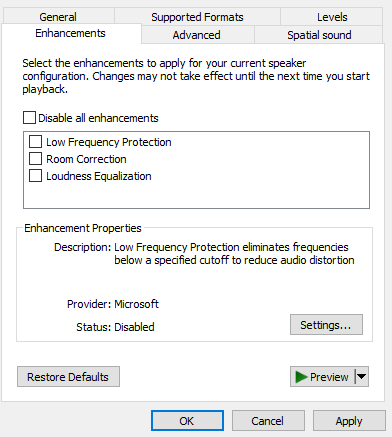
4. Disable Audio Enhancements
Audio “enhancements” can interfere with game audio on some systems. Disabling them may solve your issue.
To turn off enhancements:
Right-click the speaker icon in the bottom-right corner.
Select Sounds.
Go to the Playback tab.
Right-click your preferred device and select Properties.
Navigate to the Enhancements tab.
Uncheck Disable all enhancements.
Click Apply, then OK.
4. Disable Additional Audio Software
Some headphone and speaker manufacturers use additional audio software as a way to increase the audio experience when playing games using their devices. The audio software can sometimes cause issues and interfere with Steam or Windows audio settings.
Disabling the audio software may solve your issue.
Examples of gaming audio software:
- SteelSeries Sonar
- FxSound
- Equalizer APO
- Dolby Atmos for Headphones
- Razer THX Spatial Audio
- Boom 3D
Still having issues?
If audio works in other games but not in THE FINALS, please contact our support and include:
Your operating system
Whether all audio is missing or only certain sounds
When the issue started
What audio device you are using (headset, soundbar, speakers etc.)
This helps us investigate possible issues more quickly.